In the Code Pollution series, I'll be writing about topics where a coding anti-pattern may work tactically for an individual application, but strategically will be bad for Android as a whole, just as pollution may benefit one firm while harming many others.
Many readers have, at one point in time or another, had a Windows PC that got overloaded with "cruft" and took forever and a day to boot up. Or, even if it would boot normally, it would be slow as a dog for the first minute or two after the desktop showed up.
While it would be fun and entertaining to bash Windows for this, in reality, it was probably third party applications causing a chunk of the problem. Lots of programs think that they just have to do something when the PC starts up, and too many of them bring the boot process to a halt.
The good news is that, for most people, Android is plenty stable enough not to require constant reboots. The bad news is that Android devices may still need to be rebooted from time to time, to process firmware upgrades, to recover from a dead battery, and the like.
One of the things the core Android team feared was too many applications asking to do something at boot time, via the BOOT_COMPLETED broadcast Intent, and causing the boot process to become horribly slow. That is why you need the REQUEST_BOOT_COMPLETED permission to receive BOOT_COMPLETED broadcasts -- the theory being that users who have had problems with slow boots might be less inclined to install other programs that demand boot-time access.
Still, though, it is up to us as developers to try to make the boot process as quick and painless as possible. Here are some ways you can help:
Do not request BOOT_COMPLETED broadcasts unnecessarily. For example, some developers may think it would be cool to steal three or four seconds of processing time at boot to do some sort of initialization, rather than have to deal with that work when their app is started. Tactically, this will improve responsiveness of that one application...at the cost of harming all applications on a reboot.
Do whatever you need to do quickly. If BOOT_COMPLETED is unavoidable, try to get in and out in few dozen milliseconds, not a few seconds.
Consider whether you can wait a bit. Many times, apps do not need to start up right at boot time, but rather sometime after a reboot. Unfortunately, there is no built-in way to ask for a "early, but not right away" broadcast...unless you set one up yourself. Consider whether you could use AlarmManager to do a one-shot alarm to fire your real boot-time code a minute or two after the boot is over. You only lose a minute, and it clears out the rest of the boot processing, and perhaps some initial user actions, before your code needs to join the fray.
Code Pollution: Boot-Time Services
 12:26 AM
 Mr Dollar'Ria
 Posted in
Code Pollution: Boot-Time Services
Posted in
Code Pollution: Boot-Time Services

All you need to know about a Cell phone Spy
9:54 AM
Mr Dollar'Ria
 Posted in
The working and specifications of Android Spy Software
9:37 AM
Mr Dollar'Ria
 Posted in
Safe and secure features of an Android Spy
9:16 AM
Mr Dollar'Ria
 Posted in
Walking About With A Talking Android
2:53 PM
Mr Dollar'Ria
Walking About With A Talking Android
1 Walking About With a Talking Android
I have long relied on spoken directions from Google Maps on the desktop. As I access more and more of my online world through my Android phone, Google's recent announcement of GMM4.5 enhanced with walking directions means that I now have superior functionality to what I have enjoyed at my desk --- but now with the added benefit of having it all in my pocket!
Inclusion of step-by-step walking directions on Android now allows me to specify a destination on my TalkBack enabledeyes-free Android device, and have these spoken to me as I walk. But wait, there's more!
We're launching a new member of our Eyes-Free family of programs for Android --- WalkyTalky that goes hand-in-hand with spoken walking directions from Google Maps to better navigate the physical world. In addition,application Intersection Explorer allows me to explore the layout of streets using touch before venturing out with WalkyTalky.
1.1 WalkyTalky
WalkyTalky is an Android application that speaks the address of nearby locations as you pass them. It also provides more direct access to the walking directions component of Google Maps. With WalkyTalky installed, you can:
- Launch WalkyTalky to specify a destination,
- Either specify the destination by address, or pick from favorites or recently visited locations,
- And in addition to spoken walking directions,
- Hear street addresses as you walk by.
These spoken updates, in conjunction with the walking directions that are spoken by Google Maps help me navigate the physical world as efficiently as I navigate the Internet.
1.2 Intersection Explorer
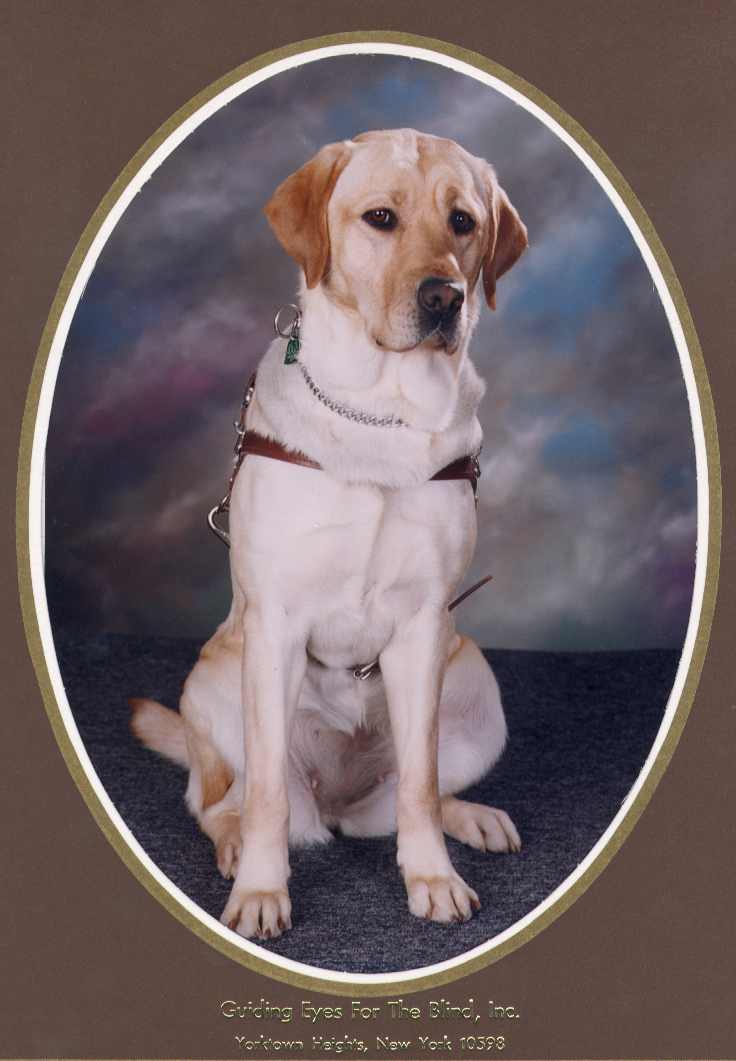
Often, I like exploring a neighborhood to learn the layout of the streets before actually venturing out with my trusty companion,Hubbell Labrador, and this is where Intersection Explorer comes into its own. Using this application, I can explore any neighborhood on Google Maps via touch exploration.
1.2.1 How It Works
- Intersection Explorer starts off at the user's current location.
- One can change the start position by entering an address, to do this, press menu and click on new location.
- Once the map has loaded, touching the screen speaks the streets at the nearest intersection.
- Moving one's finger along a compass direction, and then tracing a circle speaks each street at that intersection along with the associated compass direction.
- Presence of streets is cued by a slight vibration as one traces the circle.
- Lifting up the finger when on a street moves in that direction to the next intersection, speaks the distance moved, and finally speaks the newly arrived-at intersection.
1.3 Summary
Together, Intersection Explorer and WalkyTalky, in conjunction with Walking Directions from Google Maps brings a new level ofaccess to my physical world. I use these tools in conjunction with other Maps-based applications such as the Places Directory on Android --- this is another application from the Google Maps team that works fluently with TalkBack on Android to help me find nearby attractions or other locations of interest.
So next time you take your trusty Android out for a walk, make sure to give these new tools a spin --- you can report back on your experience via our Eyes-Free Group.
Applications WalkyTalky and Intersection Explorer can be downloaded from the Android Market.Share And Enjoy, and as usual, remember, The Best Is Yet To Come!
Date: 2010-09-09 Thu
HTML generated by org-mode 7.01 in emacs 24
QR Code for WalkyTalky:
QR Code for Intersection Explorer:

 Posted in
Synchronizing iPhone 4 with Google without iTunes
1:12 PM
Mr Dollar'Ria
Today I received a brand new iPhone 4. Life was joyful. However it gave me some frustrating moments before I could use it for real. Here is the true story what happened when I got my iPhone 4.
I had prepared the migration by backing up my contacts from my HTC Hero. The HTC had no way to export contacts to a SIM card, but only to SD card. Strangely enough it was possible to import contacts from a SIM card. Anyway I did not consider this to be a big problem, since exporting to the SD card should work fine.The contacts was saved as a VCF file. This was easily imported by double-clicking on the file. When this was done, all the google contacts was on my Mac Book. After I started and initialized the iPhone, it was connected via a USB cable to the Mac Book. Consequently iTunes was started with a wizard. One of the steps was the sync setup. By default all contacts was to be synced. Perfect! This was exactly what I wanted. A couple of more steps and I pressed the “Sync”-button.
After a short while something really odd happened. A warning message saying that no synchronization of contacts was not possible, since the phone was not connected. What! The phone was connected. Not good! I discovered a button labeled “Restore”. The help text explained that this should be used when in trouble. I felt like being in trouble and hit the restore button. The process was really fast, but enough time to get some tea. Then the same procedure once more. Still the same problem. Next try; search the Internet. I found out that I was not alone with this problem. I tried out all of the different solutions explained in the forum. Do not know how many times I cleared the sync settings, restarted the phone, re-booted the computer and all other kinds of tricks. The Apple support pages did not contain any other suggestions than found in the forum. Now I was really frustrated. I should not be that complicated to get your contacts into your new phone. Time to get a break. Get your brain to think in a different way. Reset the brain. Get some food.
Several hours later it was time to try a new approach. I googled “Sync iPhone Google”. I found an article called “Google Sync: Set Up Your Apple Device for Google Sync“. It seemed to be exactly what I was looking for. The article explained how to use add an account in the iPhone to synchronize mail, contacts and calendar. In fact it was a Microsoft Exchange account. It took me less than 5 minutes to have mail, contacts and the calendar in sync.
The final solution was much simpler than copying contacts via the computer. The intent was to only transfer the contacts and then set up a mail account on the phone. Now I get an all-in-one solution, with mail, contacts and calendar synchronization. Now my life is joyful again.
Posted in
Android,
iPhone,
Tips and Tricks
The Öredev Developer Conference 2010
11:35 AM
Mr Dollar'Ria
Each year since its inception, I have attended the Öredev developer conference. What makes it special is that it is a combined conference, with not only Java. This year it is especially important for me, since I can learn about both Android and iPhone development.
I will attend this year. Will you?
Do not forget to register at the Öredev site.